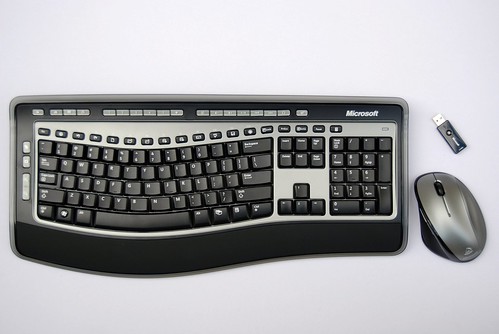
Under normal circumstances, it would be silly to give a new product with improved features and a strikingly new design the same product name as the previous version, but we’ve come to learn Microsoft’s marketing department is hardly normal. In short, consider this as the Wireless Laser Desktop 6500 if you may, Microsoft took an already awesome wireless keyboard and wireless laser mouse set and made it even better.
As a side note, it’s somewhat unfortunate that I had go through two sets of the Wireless Laser Desktop 6000 v2 to get to play with this – both of which suffered hardware malfunctions after 12 months of pretty intensive use (FPS gaming) – but I guess this is a good opportunity brag about the three-year warranty and no-questions-asked support reps at Microsoft.
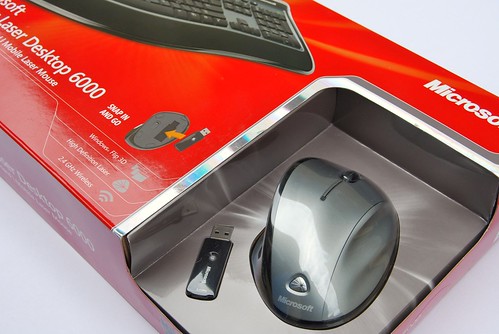
With all the attention that’s placed on product packaging these days, Microsoft Hardware has really shined with their widespread adoption of clamshell packaging. Compared to the previous version where you could just fit a hand on the window, even ogre hands can get in there now. Sure you can read all the reviews about comfort and fit but nothing beats trying it out for yourself.

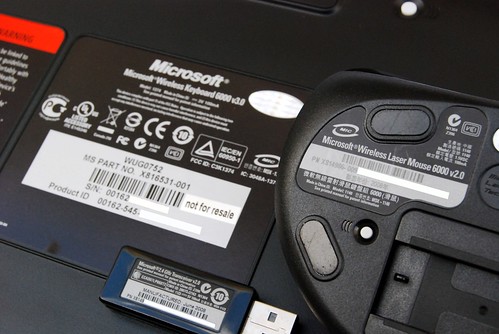
As the name suggests, the keyboard and mouse both use wireless 2.4GHz for connectivity. Having just played with the Microsoft Wireless Entertainment Desktop 7000 for a couple days which uses Bluetooth for connectivity, I can now safely say traditional wireless beats Bluetooth for ease-of-configuration, range and performance. (And I say that having experienced countless unnecessary deaths in Team Fortress 2.)
Whereas a Bluetooth keyboard and mouse took a good few minutes to connect and configure with software, wireless is as simple as pretty a button on the transceiver and a button on the mouse. Bluetooth range lasted me no more than 2 meters for any practical use, where as wireless is at least double that. Speaking as an avid online FPS gamer, Bluetooth had a small but impacting delay and jitter in online games whereas wireless is as instant as wired and smooth as butter.
Admittedly I was skeptical to find that Microsoft replaced the older transceiver base which had a long cable that could sit away from your PC case with a self-contained USB dongle, mostly because I don’t think the thick metal box otherwise known as the computer case is the best thing to stick a transceiver behind, but that’s not the case. Having used both variants, I notice no performance degradation with the new dongle.
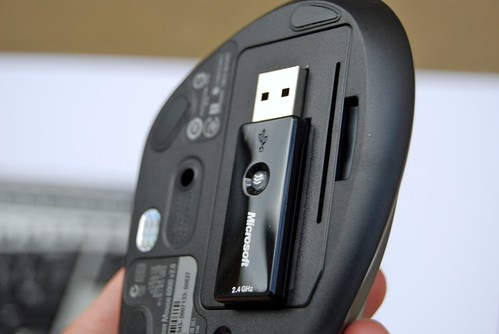
One reason they’ve switched to these dongles is so that you can place the dongle underneath the mouse and take it with you. I’m not sure how other users of that PC might feel when they discover that the mouse is missing and they can’t use the keyboard either, but it’s a neat idea to give laptop users the choice.
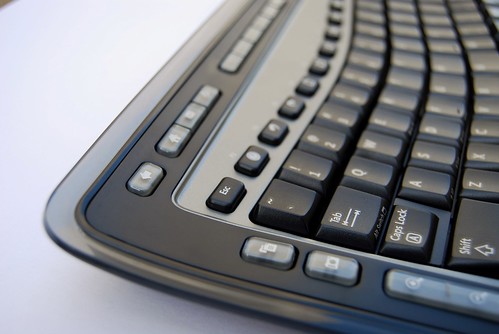
Another highlight of this keyboard is the “Windows Vista Aero-inspired” border which wraps around the whole device. To be perfectly honest, it’s a nice touch but nothing to brag about since it’s pretty much a thin layer of colored plastic.
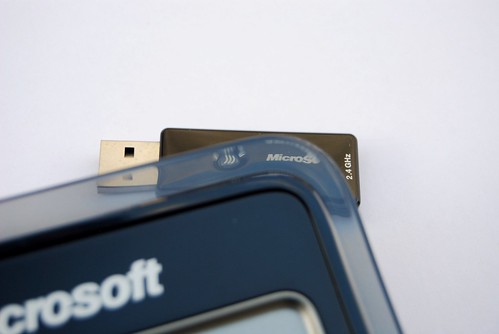
Personally I imagined it to be more like frosted glass but as you can see it’s pretty much see-through. Whoever invents a material where you can control the effect like pixel shaders will be very rich.
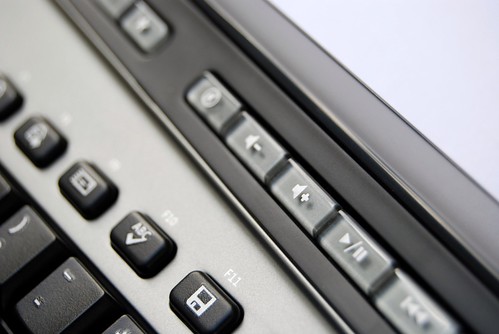
The multimedia keys have also got a visual makeover with transparent buttons. Compared to the previous v2’s layout, v3 features more streamlined buttons which is better organized and less intrusive.
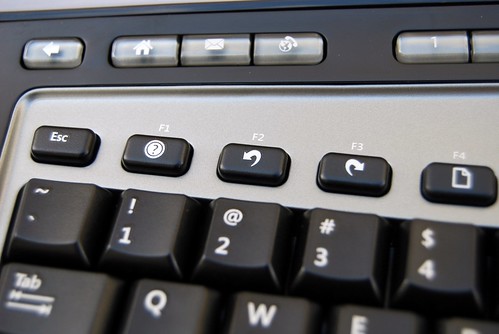
The function keys have also been redesigned with smaller individual buttons that are equally spaced between each other. This is a change I don’t welcome where it seems like they’ve change it for the sake of change. I say this because in the previous version, and on most keyboards, function keys are grouped in sets of fours (F1-F4). This is useful because I’ve grown use to the habit of finding buttons by which set they are in and where they are in the set, for example F5 is the first of the second set, F12 is the last of the last set. I’ve been taking a few guesses at where they are with moderate accuracy, but nothing beats knowing what button it is before pressing it.
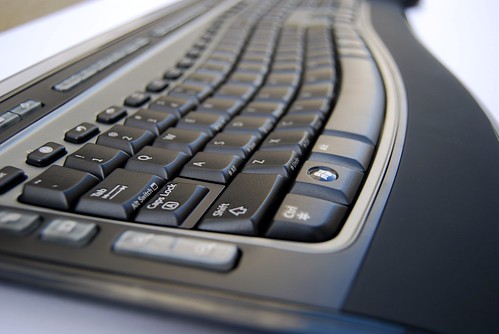
The rest of the keyboard remains pretty much identical the previous version. The keys are fairly soft and quiet whilst at the same time keeping the “desktop keyboard” tactile feel. It’s also good knowing the keyboard is ergonomically approved whilst it is still aesthetically pleasing (no ugly divide). Like the previous version, the rubbery palm rest remains and is in my opinion adds a lot to the comfort.
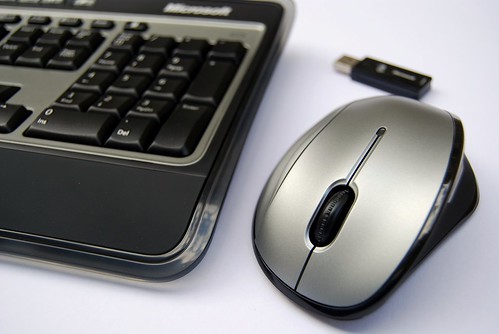
The mouse on the other hand is radically different from the previous version. At first sight it might seem like it was designed by a person who had just discovered curves, but you’d be surprised just how easily your hands rest and grip on it.
Besides the normal things you expect out of a mouse like clicking and moving which it does well, I can’t help myself but comment on the scroll wheel and how Microsoft continues to baffle me why they’re making it harder and harder to use. The scroll wheel is now thinner than a female celebrity on a mission and the middle-click is becoming almost a balancing puzzle in itself – balance a little too far left or right activates the horizontal scroll instead. Bring back the old tactile broad scrolls with an obvious middle-click please.
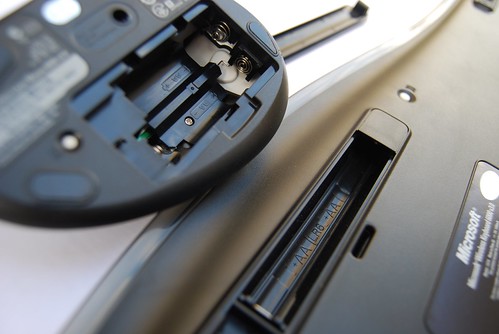
Finally some quick notes about the battery life. Both the keyboard and mouse use two AA batteries (included). Obviously it’s difficult to give a firm evaluation of the battery life without prolonged use but from experiences using the previous version, the mouse lasts around 2-3 months with very intensive use and the keyboard around 4-5 months with pretty intensive use too. Battery indicators on both will let you know when to prepare a fresh set of batteries before it passes away.
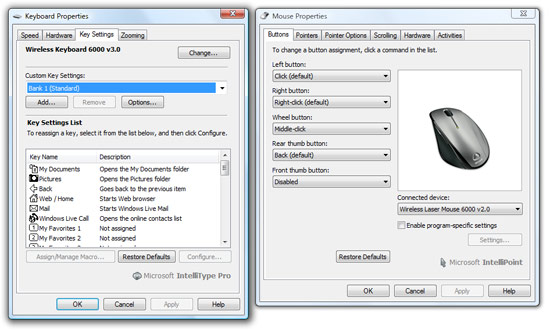
Update: Forgot to mention the software, and you’ll see why. The keyboard and mouse uses the common Microsoft IntelliType and IntelliPoint drivers respectively. New driver updates come out as often as Al Qaeda videos which is acceptable since it does what it needs to do fairly well. Besides the obvious it allows you to customize all of the non-standard keys on the keyboard and every button on the mouse as well as check the health of the battery (which always appears green).
At a retail of US$99.95 (and US$78 on Amazon), this is not a desktop set you’d buy for your average beige box. If you don’t like wires but is concerned about performance and range, then I’d recommend you avoid Bluetooth for the time being. The Wireless Laser Desktop 6000 v3 is a stylish and functional desktop set with plenty of useful features. If you already have a v2 it’s probably not worth upgrading to but if you’re in the market for a new work or gaming desktop set without the premium tax then definitely have a look at this.
I just love it. But I’m pretty much satisfied with my keyboard and mouse at the moment…
How fast does it gunk up? Or rather, how well does it stay clean?
does the scroll wheel have detents or is it free spinning?
@Yert: Must admit my v2’s got pretty dirty by 12 months. The only thing I notice which they’ve fixed is the gap between the keyboard and the palm rest, now things can’t get in there. Besides that, there’s still plenty of room between keys for things to fall down in.
@gary: If you by “free spinning” as in kinetics, then no, it stops spinning as soon as you let go, but it doesn’t have any “gears” so it’s quite easy to spin it very quickly.
thanks. i just like to feel a “click” as i move the scroll wheel. when there is no detent, and i have my finfer on it. i tend to move it inadvertantly.
PC keyboards are so much nicer than what’s available for Mac. Do you know if you can use this keyboard combo with an Apple computer?
@Geof Harries: The side of the box and the Microsoft website both say its Mac compatible.
Insteresting, your experiences with wireless range are very different than mine. I have the Wireless Laser Desktop 5000, and the usable range I get is about 10cm. I am not exaggerating. I have the receiver sitting right above the top-right corner of my keyboard otherwise it’ll be out of range for either keyboard or mouse.
Must be cosmic rays or something. :S
@Sven: I assume you have a transceiver that’s on a long wire. As weird as it may sounds, try placing your transceiver upside down UNDER your mouse and keyboard, maybe even on the ground.
Microsoft has been my manufacturer of choice for well over a decade for mice and keyboards. Microsoft still makes outstanding keyboards, with my favourite being the Natural series.
Unfortunately I can’t stand their mice anymore, so I’m stuck with my slowly degrading Microsoft Intellimouse Optical from 2 years ago. My wife and I affectionately refer to the mouse in this bundle as “the potato”. It just looks really dumb. It’s comfy, but as Long says, it’s pretty well impossible to click the middle mouse button without triggering the horizontal scroll instead. The smooth, non-ratcheted scroll wheel is really above average in web browsers and documents, but in a first person shooter you’re liable to scroll through 8 guns when all you wanted was the next one.
Keyboard/mouse bundles are rarely the best of both worlds. These are your primary means of interacting with your computer so it’s not worthwhile to cheap out on them. Choose carefully and spend as much as is necessary to make yourself more productive. If your expensive keyboard and mouse save you 1 hour of work in 2 years they’ll probably have paid for themselves.
I agree with gary. I NEED that click. You lose too much precision without it. I had a 6000 but never got used to not knowing how much I was scrolling. Why Microsoft insists on this is beyond me. That will keep me a Logitech customer for a long time even though I really like some of Microsoft’s designs otherwise.
I’ll have to look for a wired version as just don’t like wireless. All that tech to replace a cable that never worried me anwyay!. The old “natural mk1” Keyboard is finally starting to misbehave., shift key worn out, but not bad considering got it soon after Win95 arrived!
whenever i click the link to manage subscription, i get::
You may not access this page without a valid key
ESC key seems to me a bit small… Is it (keyboard :)) good for coding? Or it just a home entertaining keyboard?
@Alex: It’s definitely smaller than normal keyboards but its something I could get use to. I don’t think this is a home entertainment keyboard for reasons like the numpad.
I bought this, then promptly returned it the next day after the mouse squeeked constantly, no lie.
The guy said its technically not a fault so he cant do it, I said I’m not leaving until I get a refund.
He buckled.
You know, I think wireless range is very, very much a your-mileage-may-vary thing. I have the Wireless Entertainment Desktop 8000 (Bluetooth) and the keyboard works from the kitchen, which is downstairs and 3 rooms away. My old Logitech Bluetooth set worked from the corner of the backyard!
As for FPS performance, you may well be right. That, I haven’t tested…
my 6000 v2’s keyboard batteries seemed to last more than 5 months with me. bought the set last year and only changed the batteries 2 months ago.
it was only when i noticed it skipping letters (particularly when you hold shift for a capital) that i figured that the batteries were going, then to discover that they were the same ones that came with the keyboard!! of course i haven’t been Quakin’ nearly as much lately but the bottom line is battery consumption is far better than one would expect and latency isn’t the problem you would expect from a wireless set.
that said, i can’t wait for my v2 to die so i can have an excuse to upgrade. 😛
I find that the reciever has to be close to my keyboard/mouse or I lose signal occasionally. So I’ve had to plug the dongle into my monitor’s USB hub. It’s annoying – my case is only a meter and a half away.
Hello, I know this is off topic but I can’t wait any more to let you know that there are TWO additional Windows Ultimate Extras available through Windows Update now. They are called Microsoft Tinker and Sounds from Tinker. Downloading these extras now – wonder what they are. 🙂
Nice review 🙂
Looks beautiful! I like the black on black. Wish it had bluetooth, but I would settle for GHz. 8^)
I still prefer wired keyboards and mice. I just don’t think they are tool that need to be wireless, since how far away from your screen are you likely to get with those two things? Plus, you need batteries, there’s signal crossover/interference…
Also, I’m finding the quality of Microsoft keyboards in recent years declining. I had to replace one twice because of failing keys, and another for the key print rubbing off. Made in a cheaper part of China, perhaps?
Great article I was looking for a tabular comparision between V2 and V3, but still a great article.
If you could add what problems the V2 had that this fixed, I would be very interested, (besides the shape of the mouse)
thanks again
Biggest problem I had with V2 was the farcical left shift key which I kept missing. It is fixed in V3.
I don’t understand why they mess with something like the F-key layout. At least they left the Insert-Home-PageUp arrangement along on this keyboard.
Is it just me, or is the enter key on this keyboard a button?
I just got this keyboard, and if I press the enter key on the right side of the key, it locks in place, sending the enter key continuously to my desktop.
To unlock it, I need to press it on the left side of the key. Is this normal?
This thing looks nice and has good connectivity. The mouse seems to work prettty well but the keyboard is another thing. Don’t try and type anything with it. If you push the shift to try and capitalize a letter or access the @ above the 2 key forget it. You get a message about sticky keys. When you look back after typing a paragraph you will notice many missing strokes. Combined with the non-existent customer service and lack of an available manual I was really disappointed. It is back in the box on its way to the return shelf. Microsoft can do much better.
i have never bought a keyboard that didn’t work before, this is amzing. lets hope this is not a sign of where microsoft is headed. the keyboard looks nice feels nice but dosn’t work. the shift key doesn’t choose the upper case characters. btw:that is why i am typing this all in lower case. you can get it to shift charactersby first selecting the character then hitting the shift key. doing that leads to something like this fF you then have to go back and delete the lower case character. i also found that the control key works the same way.
as far as the software there is a nice zoom feature and the quality of the zoom seems good but… if you then search for a string of characters it finds them and highlights characters to the left.
it appears the repeat when you hold down a key doesn’t work either.
thats all i have found but i have only been using the keyboard for about a half hour or so.
it looks from other posts i am not the only one seeing these problems. i figured it was just my keyboard and was going to return it and try another. i guess not.
i long for my old ibm xt keyb oard that click click click it looked and felt just like a typewriter, the good ol days.
I had a couple of Microsoft keyboards in recent years, and both suffered keyboard failures very shortly after use. I swapped one and got another which also failed. I swore off Microsoft keyboards from then on and have never owned another since. A shame, because the earlier keyboard models from about 10 years ago had no problems. Different factory in China, perhaps? (Microsoft mice still seem to be reliable, however.)
To those with StickyKeys, why not just turn off the shortcut for the feature in Control Panel?
Phew, I am relieved!
My old Microsoft Wireless Laser Desktop 6000 v2 just broke down, but luckily it was 3 month before warranty expiration 🙂 I will get this (v3) new one as a replacement and I was worried about performance. But after reading this review I am really looking forward at this new one. Just must wait few more days, until it arrive from warehose 🙁
Hey, guys. I first had trouble with this keyboard when I plugged it in. It would stop working every 30 mins or so. If I waited 5 minutes, it would work again.
Then I got a USB extender from another keyboard set and put my transceiver in the USB extender. This way the transceiver is on the desktop instead of in the back of the computer. (much closer to the keyboard and mouse)
I found that this eliminated the not working-ness that I was experiencing.
Moral of the story: Microsoft sucks at doing keyboards. And Microsoft’s wireless technology has a range of a whopping two feet!
why does the shift key on the wireless keyboard 6000 v.3 not work?
When I use Excel 2007 with this keyboard – the F2 edit key does not function as the edit key – it functions as the “undo” command. Has anyone else had this problem – and does anyone know how to make the F2 key work as the edit key as it should with the Excel 2007 program?
I have had the keyboard and mouse for one complete day and it is already starting to irriate me a BIGTIME. To type a capital letter, I have to hit the ‘caps lock’ twice; the shift key produces nothing. To access my email, I have to go to the internet and find the equivalent of a ‘capital 2’ and then copy/paste the character into my email account. While the keyboard is attractive and very comfortable, the technical group who created it should be shot. There is no indication where the keyboard was manufactured but my guess is CHINA.
Other irritations are trying to figure out how to use the shift key to produce capital letters or access the upper row of characters located above the numerals; trying to find out how to do a ‘question mark’; quotation marks; right and left upper brackets; the plus sign; exclamation mark; producing a backspace delete for numerous letters by hitting the backspace only once rather than hitting it 6 times to delete last 6 characters; hitting left and right cursors once to go back or forward more than once to locate a letter for a correction and on , and on, and on.
So Microsoft, your overall design is an abysmal failure. only to be surpassed by your lack of support. In summary, it’s an excellent choice if you want to irritate someone endlessly. Otherwise, avoid it.
I am frustrated because 3/4th of the time the keyboard sticks-I can’t ttttype thhhhe letteeeeeeers or it types more than one letter as you can see. Can’t seem to find any assitance on line either
Excel function key fix: use the Function Lock key (to the right of the F12 key). This Enables the standard function key actions such as F2 to edit a cell.
Just got this keyboard and mouse and find that neither the space bar nor the backspace key will work fast when held down — I literally have to tap both of the keys until I get to where I need to go. Does anyone have any suggestions for me regarding this? I would be extremely grateful! Thanks.
It is impossible to find a manual or to receive from MS information about the meaning and how to use the vaious key and symbols on the keyboards. I know nothing about computers and purchased one for email. Nevertheless, I would like to know about ALL keys. Not one comment mentioned them.
Hi,
Does the USB for the wireless signal have to be in front of the computer or will it work if it is plugged in through the back?
My version 5000 keyboard has just gone ‘belly-up’ after 18months.
This was a replacement that only lasted 10 weeks! which was a replacement for a ver 3000 that had lasted just over 18 months.
Microsoft has promised a 6000 ver 3 as a direct replacement, but is currently out of stock so delivery will be in 3/5 weeks.
Currently using a wired mouse ex car boot for 50p make unknown and an old ibm wired keyboard thats about 12 years old.
Reading all the above should I stay wired or hope the 6000 works when I finally get it?
can someone please tell me how to get the shift working to use upper case and get to things like question marks. i just can’t believe there’s not a solution for this. thanks in advance.
hi, i have just got myself this keyboard to replace my old saitek gaming one.
overall im pretty happy with it.
as for capital letters using the shift key works fine for Me 😉
i doi have 1 questiion regarding it tho.
the keyboard has a battery indicator but nothing is showing, should this be on to infom me of how much power is left on it and from time to time my mouse freezes.
my usb is connected to the back of my pc should i connect it to the front.
anyway overall a nice looking KB+mouse to replace my old ones.
Mick
Everyone with shift issues (yeah, I know this is an old thread):
I found the cause: Check to see if the ‘sync’ button on the bottom of the keyboard is partially ‘stuck in’; mine was somehow sideways pressed & jammed in the hole.
When I fixed it, and then hit the sync button on the keyboard then the receiver, SHIFT/CTRL/etc all worked as expected again.
– An IT Consultant