 With great power comes great responsibility. Windows Vista comes with an amazingly powerful search engine that finds your documents, photos, music, movies, emails, applications and even sensitive materials in milliseconds. Some documents are never meant to be found, such as private collections of Steve Jobs keynotes, Laura Foy videos or even my secret stash of Tux penguinography. But with such a powerful search engine, how will you protect your innocence in Windows Vista? Here’s a few tips.
Exclude from Search Indexer
Tackling the problem from the soul of the searching beast. By excluding folders from the search indexer, you will permanently remove any existing indexes on that folder and prevent any future indexes inside that folder. This is recommended for permanent collections that don’t move around.
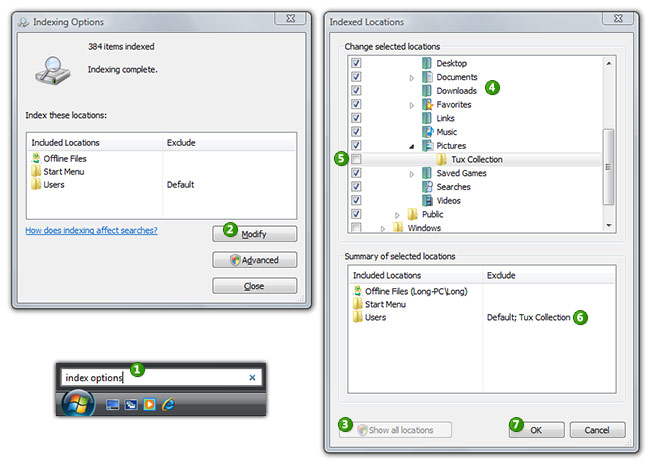
- Launch the “Indexing Options” dialog by clicking the Start pearl and search for “index options”
- Click the “Modify” button.
- Click the “Show all locations” button, agree to UAC prompt.
- Expand the “Change selected locations” tree at the top. Find your
appropriateinappropriate folders.
For example: D:\Users\Long\Pictures\Tux Collection - Untick the folder(s) you wish to exclude from search.
- Verify your folders have been excluded in the summary below.
- Close appropriate dialogs.
Folder attributes
An alternative to digging inside the search index is to flag specific folders to be not indexed. This works better for folders that move frequently, but does not guarantee an 100% result, sometimes leaving small traces of folders or files inside the folders.
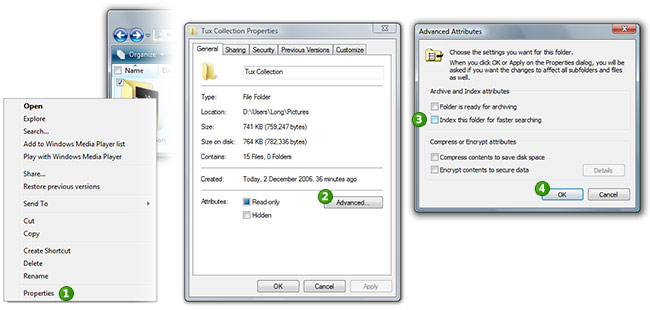
- Right click on the folder you wish to flag for non-index. Click “Properties”.
- Click the “Advanced” button.
- Untick “Index this folder for faster searching.
- Click “OK”, and close other windows.
File attributes
Perhaps you just have that special one picture of Tux you wouldn’t like to share with the world, but the rest is public domain? Then you can exclude individual files from the search index.
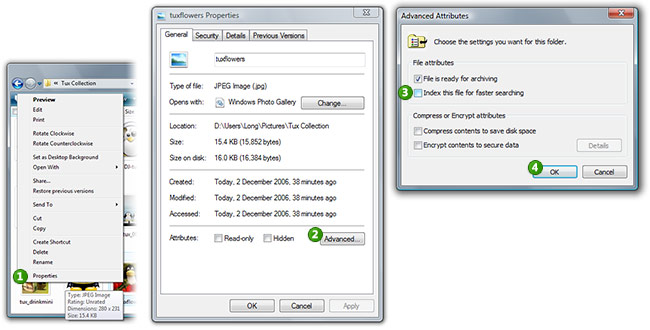
- Right click on the file you wish to flag for non-index. Click “Properties”.
- Click the “Advanced” button.
- Untick “Index this file for faster searching.
- Click “OK”, and close other windows.
Here’s a comparison of the before and after effects by using file attributes. It really works!
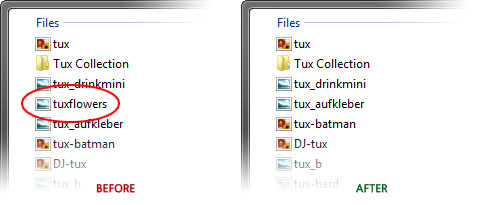
Although it’s probably not a good idea to store penguinography in the “Pictures” folder to begin with.
And before anyone states the obvious, I acknowledge OS X has had a powerful search indexer and search tool (Spotlight) for years.
That is just plain awesome!
http://digg.com/software/How_to_hide_inappropriate_content_in_Vista
hahaha…
LMAO long very long…
nice spiderman copy
heres Long Zheng’s plagiaristic side
presenting you Long Zheng “the plagiarist” 😛
CENSORED! lol… good one!
Thanks Long! Helps me!
BTW, what Vista are you using? It looks.. different than the other CRP Vistas…
I’m using the one and only Vista you can get.
http://shellrevealed.com/forums/thread/5596.aspx 😀
Thanks for this but could you also explain how to delete files within the “Previous Versions” feature?
Haha, you are a riot Long. But, thanks for the info. 🙂
os x got spotlight because of longhorn concepts o_O
Useful information, thank you for posting Long.
I use RC1 Long, is that the one you have? Damn! Took 3 days to download…
Wow
I love Vista a bit more each day
What am I going to do with the Google Desktop now?!
Is there a way to hide pictures from the Windows Photo Gallery?
Any suggestions on what to do if there are files you want to protect or hide such that other can’t find them. I’ve used software from http://www.spydex.com that worked pretty well on XP. Ideally, I’d like to be able to protect them with a password vs just the selection of an option in windows that another use could simply reactivate. The other issue that i’ve seen with trying to hide files is that sometimes you will use a program to lock and hide a file and while you can’t then find it in the explorer view, you can often access it from either the a programs “most recent files” section or the “recent items” menu from the start bar.
Hi there, i have tried all the above options, and it still comes up with the files. the folders were originally not indexed, but if you do a search for it, it still tracked them down, and that’s without even clicking the “include non-indexed, hidden” and such files. is there a way to overcome this? including once the search is checked to look for non-indexed and such files? Cheers
Yes I am still finding the files. But thanks for your effort
how do you show files that you have hidden?
I did go through and do this..but it only affects the search from the Windows Start Button.
If you open file explorer, select the entire computer, in the left window, and put in jpg or wmv..you still end up finding the content that you identified as not to be indexed.
In addition, the laptop I use is an HP one that has HP Media Smart.. when you select photos..again, deselecting The only thing I can think to do is to make the file folders that contain the sensitive content hidden folders from within the same properties tab that you have noted as a path to doing this. Of course you have to have the view hidden files option deselected for this to work….havent tried it yet but believe it will work.
Oh please. I’d never trust this method- many posts above me show how riddled with holes this is. Search from the root of the C drive and it all comes out in the wash.
Do it properly: RUN A VIRTUAL MACHINE AND BROWSE IN THERE. It’s not hard.
Create a virtual machine and browse, store, and watch everything in there. VMWare Workstation with a virtual machine running Windows XP Pro is all you need.
If you’re really smart, you can install and run the VM from an external hard drive folder, so when the hard drive is unplugged, your host machine is squeaky clean. And I mean so clean you can see your reflection in it.
Never a “mom that isn’t mine” moment again.
But yeah, if you don’t use my method, you’ll always be looking over your shoulder for that random index you forgot to exclude. The ONLY watertight solution is to run a virtual machine- so there is no way your host machine can pick up what the virtual machine has on it. It’s also good as it protects the host against infection from viruses.
Most people could benefit from using virtual machines, they just don’t realise it- so they either put up with messed up installs of Windows, or waste countless hours reinstalling Windows on their PC every time they screw it up. Which is a lot- people generally screw their computers up a lot.
THESE TRICKS WORK…TRY BOTH OF THESE TRICKS…BUT ALSO MAKE SURE THAT IN THE PROPERTIES BOX OF THE FOLDER (IN THE GENERAL TAB, YOU ALSO UNCHECK THE “READ ONLY” = IT SHOULD NOT BE A BLUE/VIOLET BOX AND NEITHER BE A TICK; BUT JUST A BLANK BOX. THE HIDDEN OPTION BOX IS TICKED. THEN GO TO THE ADVANCED TAB AND UNCHECK BOTH “ARCHIVE AND INDEX ATTRIBUTES” .THEN APPLY THIS ATTRIBUTES TO THE FOLDER AND SUB FOLDERS. THEN TYPE IN THE SEARCH BOX, THE FILE NAME AND IT SHOULD SHOW. THIS IS FOR WINDOWS VISTA, MAY ALSO WORK FOR XP.
THIS TRICK PLUS A BLANK “READ ONLY” BOX WILL BE ATTRIBUTED TO THE FOLDER AND THIS FOLDER AND ITS FILES WILL NOT SHOW IN ANY SEARCH WHETHER IN “START” OR “ADVANCED SEARCH ” OPTION.
Summit, posting in *ALL CAPS* is the mark of a moron.
Your method does not work very well- so stop trying to insist we use on using your “tricks”
20 bucks says you’ve no idea how to use a virtual machine- which was what I was advocating as one of the best methods for achieving what this thread was about- keeping files hidden from accidental detection by other users.
Thanks Summit; unchecking “read-only” did the trick.
Great post, very useful information. Also go easy on Summit he was just trying to help
Nice job.
good work dude thankx a lot